
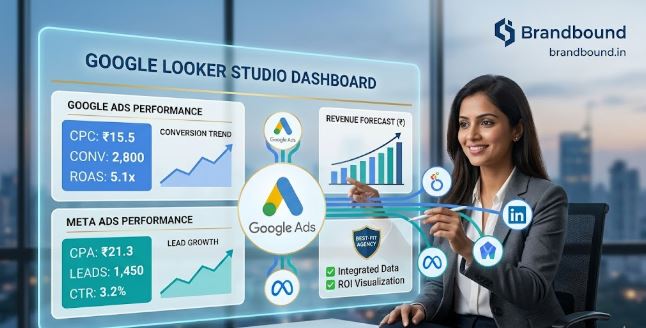
In today’s multi-channel advertising world, tracking performance across Google Ads (Search, Display, Performance Max, etc.) and Meta Ads (Facebook + Instagram) separately wastes time and hides cross-platform insights. A unified dashboard in Google Looker Studio (formerly Data Studio) solves this by combining both platforms into one interactive, automatically updating report.
This guide walks you through everything: connecting the data sources, building key visuals, blending data for cross-platform analysis, and creating a professional dashboard for weekly or monthly reporting.
Why Build a Combined Google + Meta Ads Dashboard?
- Cross-channel comparison: See which platform delivers better ROAS, CTR, or cost per conversion.
- Unified metrics: Track total spend, impressions, clicks, conversions, and ROI in one place.
- Time savings: No more manual exports or copy-pasting into spreadsheets.
- Actionable insights: Spot trends, optimize budget allocation, and present clean reports to clients or stakeholders.
- Free & flexible: Looker Studio is completely free, with powerful blending and visualization tools.
Prerequisites
- Access to Google Ads and Meta (Facebook) Ads accounts.
- A Google account for Looker Studio.
- Admin or analyst-level permissions on both ad platforms.
- (Recommended) A third-party connector like Porter Metrics, Supermetrics, Coupler.io, Windsor.ai, or Power My Analytics for Meta Ads (Looker Studio has no native Meta connector).
Step 1: Access Google Looker Studio and Create a New Report
- Go to lookerstudio.google.com and sign in.
- Click Create → Report.
- Give your report a clear name, e.g., “Google + Meta Ads Performance Dashboard – Q2 2026”.
- Delete the default table if it appears.
Step 2: Connect Google Ads (Native & Easy)
Google Ads has a built-in connector, so this part is straightforward.
- In your report, click Add data.
- Search for and select the Google Ads connector.
- Authorize with your Google account.
- Select your Google Ads account(s) → Choose Overall Account Fields for maximum flexibility.
- Click Add to report.
Key fields you’ll get automatically:
- Metrics: Impressions, Clicks, Cost, CTR, Conversions, Conv. Value, ROAS, CPC, CPM.
- Dimensions: Campaign, Ad Group, Keyword, Device, Network, Date, etc.
Step 3: Connect Meta Ads (Facebook + Instagram)
Looker Studio does not have a native Meta Ads connector, so you need a third-party solution.
Recommended Options (2026):
- Porter Metrics (often has free tiers/templates) → Great for quick setup.
- Supermetrics → Popular for agencies, supports many fields.
- Coupler.io, Windsor.ai, or Power My Analytics → Reliable for multi-account and blending.
- Free workaround: Export data to Google Sheets via Meta Ads Manager or a tool like Two Minute Reports, then connect Sheets.
Setup with a Connector (e.g., Porter Metrics or Supermetrics):
- Go to the connector’s site or directly from Looker Studio’s community connectors gallery.
- Authenticate your Facebook/Meta account and select the Ad Accounts you want.
- Create the data source in Looker Studio.
- Add it to your report.
Key Meta fields to include:
- Metrics: Impressions, Reach, Spend, Clicks, CTR, CPC, Conversions, Cost per Result, ROAS.
- Dimensions: Campaign Name, Ad Set, Ad Name, Objective, Placement, Age, Gender, Date, etc.
Tip: If managing multiple Meta ad accounts, many connectors allow blending them automatically.
Step 4: Blend Data for Cross-Platform Analysis (The Most Important Step)
To compare Google and Meta side-by-side, create a blended data source.
- Go to Resource → Manage blended data → Add a blend.
- Name it something like “Google + Meta Combined”.
- Add both data sources (Google Ads + Meta Ads).
- Join on common fields:
- Primary join key: Date (very important for time-based trends).
- Optional: Campaign Name (if you use consistent naming) or use a calculated field to standardize names.
- Use Left Outer Join or Full Outer Join depending on your needs.
- Add shared metrics with consistent naming:
- Use calculated fields like Total Spend = IFNULL(Google Cost, 0) + IFNULL(Meta Spend, 0)
- Total Clicks, Total Impressions, Total Conversions, Blended ROAS, etc.
- Save the blend.
This blended source becomes the foundation for your unified KPIs.
Step 5: Design the Dashboard Layout
Organize your report with a clean, professional layout:
Page 1: Executive Overview
- Date range control (Last 7 days, Last 30 days, This Month, Custom).
- Scorecards for key KPIs (with comparison to previous period):
- Total Spend
- Total Impressions
- Total Clicks
- Average CTR
- Total Conversions / Revenue
- Blended ROAS / CPA
- Pie or donut charts: Spend split by Platform (Google vs Meta).
- Bar chart: Performance by Campaign Type/Objective.
Page 2: Platform Comparison
- Time series line charts: Spend, Clicks, Conversions over time (with platform breakdown).
- Bar charts: CTR, CPC, ROAS comparison (Google vs Meta).
- Table: Top 10 Campaigns across both platforms (sorted by ROAS or Conversions).
Page 3: Google Ads Deep Dive
- Breakdown by Campaign Type (Search, Display, Performance Max, etc.).
- Device and Location performance.
- Keyword or Query performance table (if Search campaigns).
Page 4: Meta Ads Deep Dive
- Breakdown by Placement (Feed, Stories, Reels, Audience Network).
- Creative performance (if connector supports ad-level data).
- Demographics (Age + Gender).
Page 5: Trends & Insights
- Weekly/Monthly trend charts.
- Budget pacing gauges.
- Alerts or conditional formatting for underperforming campaigns.
Use filters at the top or page level (e.g., by Campaign, Platform, Date).
Step 6: Add Visualizations and Polish
- Scorecards — For big KPIs with % change arrows.
- Time series charts — For trends.
- Bar/Column charts — For comparisons.
- Tables — For detailed campaign lists (add sorting and conditional formatting).
- Geo maps — For location performance (Google Ads excels here).
- Pie/Donut — For spend or conversion distribution.
Styling tips:
- Use consistent colors (e.g., blue for Google, purple for Meta).
- Add a header with your logo and report title.
- Make it mobile-responsive.
- Add text boxes with explanations or insights.
Step 7: Schedule Automatic Refreshes & Sharing
- Data refreshes automatically (frequency depends on the connector).
- Share via link with “View” or “Edit” access.
- Embed in websites or export as PDF for client reports.
- Set up email scheduling for weekly/monthly reports.
Best Practices for a High-Quality Dashboard
- Standardize naming conventions across platforms for easier blending.
- Use calculated fields extensively (e.g., for blended ROAS = Total Conv. Value / Total Spend).
- Add comparison periods (e.g., vs previous week/month).
- Include attribution notes (especially if combining with Google Analytics 4).
- Test with a small date range first to ensure data pulls correctly.
- Monitor data freshness and connector quotas.
Common Challenges & Solutions
- Meta data not appearing → Check permissions and re-authenticate the connector.
- Blending errors → Ensure date formats match; use IFNULL for missing values.
- Too many rows → Apply filters or use aggregated views.
- Costly connectors → Start with free tiers or Google Sheets export method for testing.
Ready-Made Templates to Speed Things Up
Several free or low-cost templates exist:
- Porter Metrics or Supermetrics templates for Google + Meta combined.
- Coupler.io’s “Google Ads vs Meta Ads” template.
- Community galleries in Looker Studio.
You can start with one and customize it heavily.
Final Thoughts
Creating a unified Google Ads and Meta Ads dashboard in Looker Studio turns fragmented data into powerful, visual insights. Once set up, it becomes a living report that updates automatically and helps you make faster, smarter advertising decisions.
Whether you’re a solo marketer, agency, or in-house team, this setup saves hours every week and improves ROI tracking across platforms.
Ready to build yours? Head to Looker Studio now and follow the steps above. If you get stuck on blending or connectors, feel free to drop a comment or reach out.